Why Wi-Fi Slowdowns Are Rarely Just One Thing
When your Wi-Fi feels sluggish, it's tempting to blame your internet provider - but in most households, the actual source of the problem lives inside the home. Slow speeds, dropped connections, and dead zones are usually the result of compounding factors: where your router sits, how many devices are competing for bandwidth, what's interfering with your signal, and how old your equipment is.
Understanding these causes doesn't require a networking background. Most of them are predictable, and most can be addressed without upgrading your internet plan. The goal here is to help you identify which of these common mistakes might be affecting your network - so you can focus your troubleshooting in the right place.
Your Plan Speed Is Not Your Wi-Fi Speed
The speed you pay for from your internet provider is delivered to your modem - not automatically throughout your home. Wi-Fi adds its own variables: router quality, distance, obstacles, and interference. Many households blame their provider when the real issue is inside the home network itself.
The Most Common Mistakes That Slow Down Home Wi-Fi
The following errors are among the most frequently encountered across home networks. They're easy to make, often invisible to the user, and consistently fixable once identified.
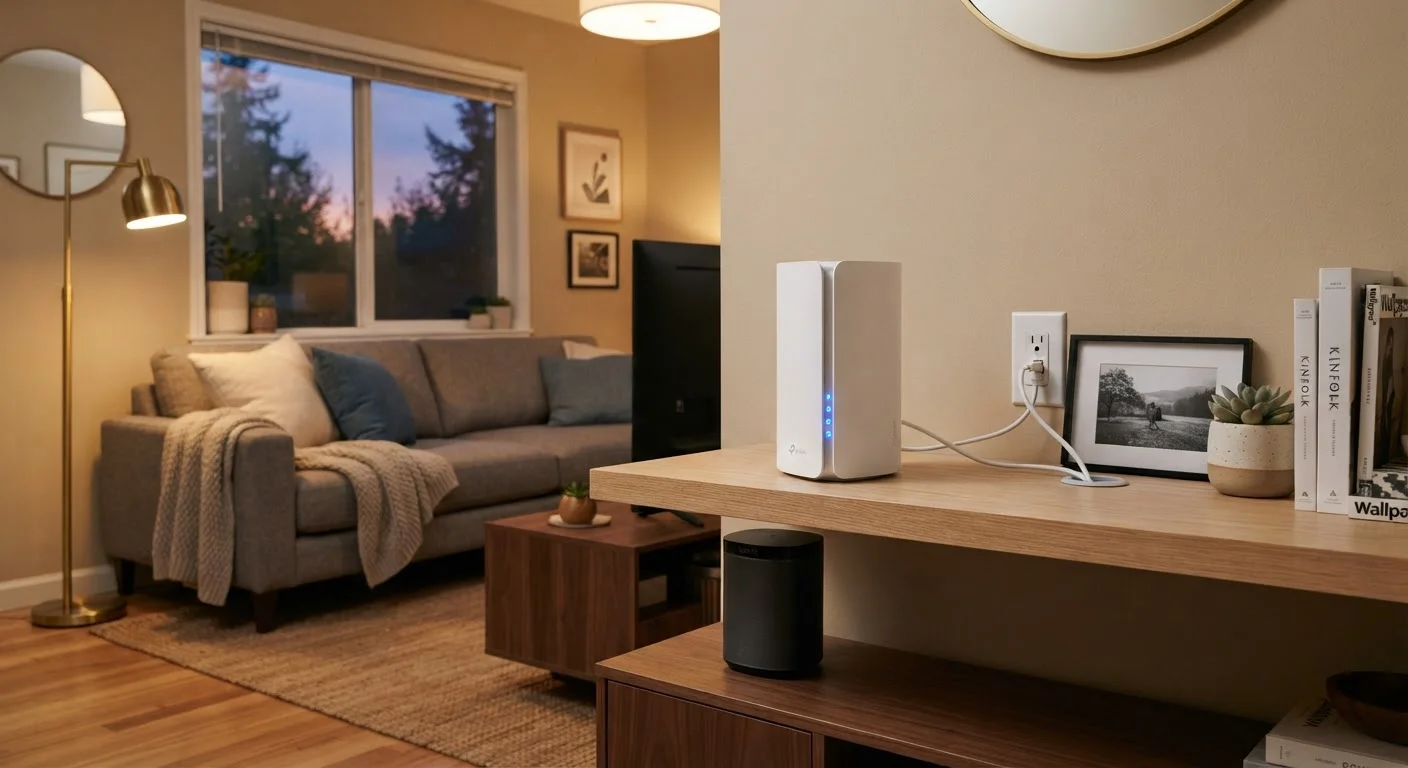
Placing the router in a corner, closet, or behind large furniture.
Why it happens: Routers are often tucked away for aesthetic reasons or because that's where the coax or ethernet port happens to be.
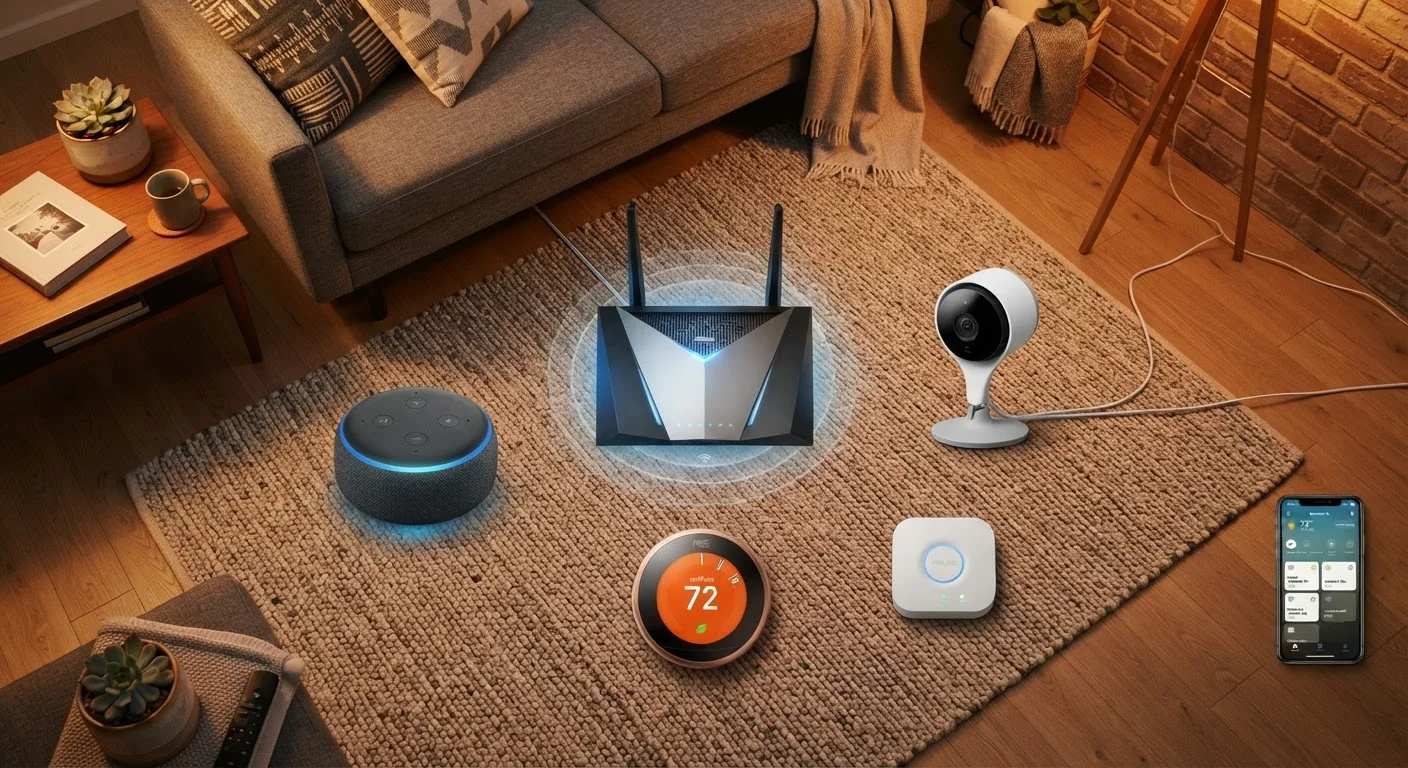
Running too many devices simultaneously on the same network without prioritization.
Why it happens: Smart TVs, gaming consoles, phones, laptops, and smart home devices all compete for bandwidth, and most households add devices gradually without reconsidering network capacity.
Never updating router firmware or using hardware that's well past its useful life.
Why it happens: Firmware updates aren't automatic on many routers, and most people don't think of a router the way they think of a phone or computer that needs regular updates.
Ignoring wireless interference from neighboring networks and household electronics.
Why it happens: The 2.4 GHz band - used by most older devices - is also shared by microwaves, baby monitors, cordless phones, and dozens of nearby Wi-Fi networks in apartment buildings or dense neighborhoods.
Assuming a higher-tier internet plan will fix a Wi-Fi performance problem.
Why it happens: Speed test results are often lower than expected, and the instinct is to assume the internet plan isn't fast enough - when the bottleneck is actually the local network.
For readers dealing with similar frustrations on cellular rather than home connections, why phone signal drops in certain spots covers the distinct reasons mobile coverage gaps occur.
2.4 GHz
Most congested Wi-Fi band in homes
The 2.4 GHz band is shared by dozens of device types and neighboring networks, making it the most interference-prone frequency in residential settings.
~30 ft
Approximate 5 GHz effective indoor range
The 5 GHz band delivers faster speeds but loses signal strength more quickly through walls, making device proximity to the router a significant factor.
5-7 years
Typical useful life of a home router
Industry guidance generally suggests consumer routers become performance and security liabilities after five to seven years of use.
What to Check Before Calling Your Provider
Before concluding that your internet service is the problem, run through a short checklist at home. First, restart your modem and router - power-cycling clears temporary errors and can restore normal speeds in minutes. Then test your speeds over ethernet rather than Wi-Fi to isolate whether the issue is the connection itself or the wireless network.
If ethernet speeds look normal but Wi-Fi is still underperforming, you're dealing with a home network issue. Review your router's placement, check for firmware updates, and look at which devices are actively connected. Even reducing background activity on a few devices can noticeably improve performance for everything else on the network.
Don't Ignore an Aging Router
Routers more than five or six years old may lack support for modern Wi-Fi standards, limiting speeds regardless of your plan. They're also less likely to receive security patches. If your router is that old, performance problems are likely to get worse, not better, over time.
For households with persistent coverage gaps or large floor plans, a mesh network system distributes multiple access points throughout the home, which can be more effective than a single router upgrade. Our home network security guide also covers how default credentials and unpatched firmware create both performance and safety risks worth addressing at the same time.