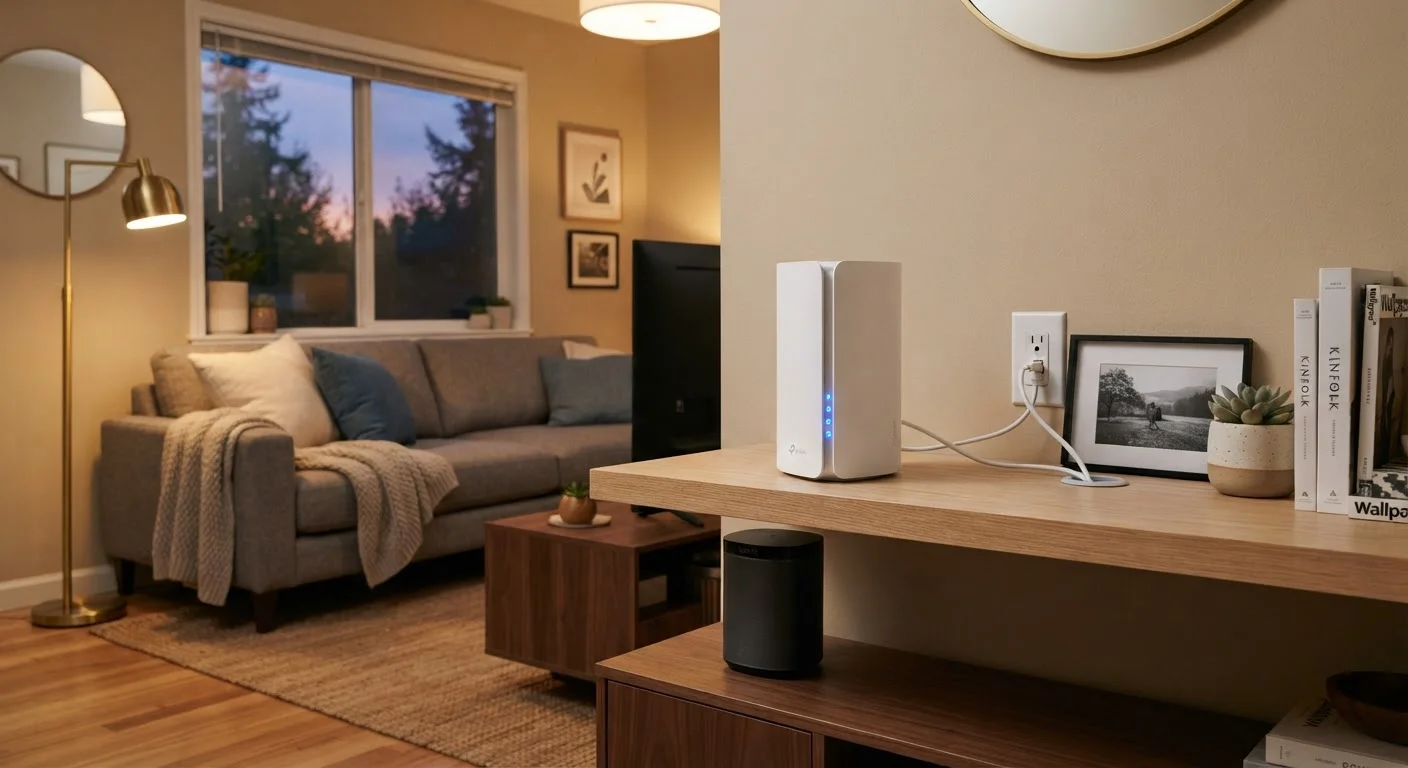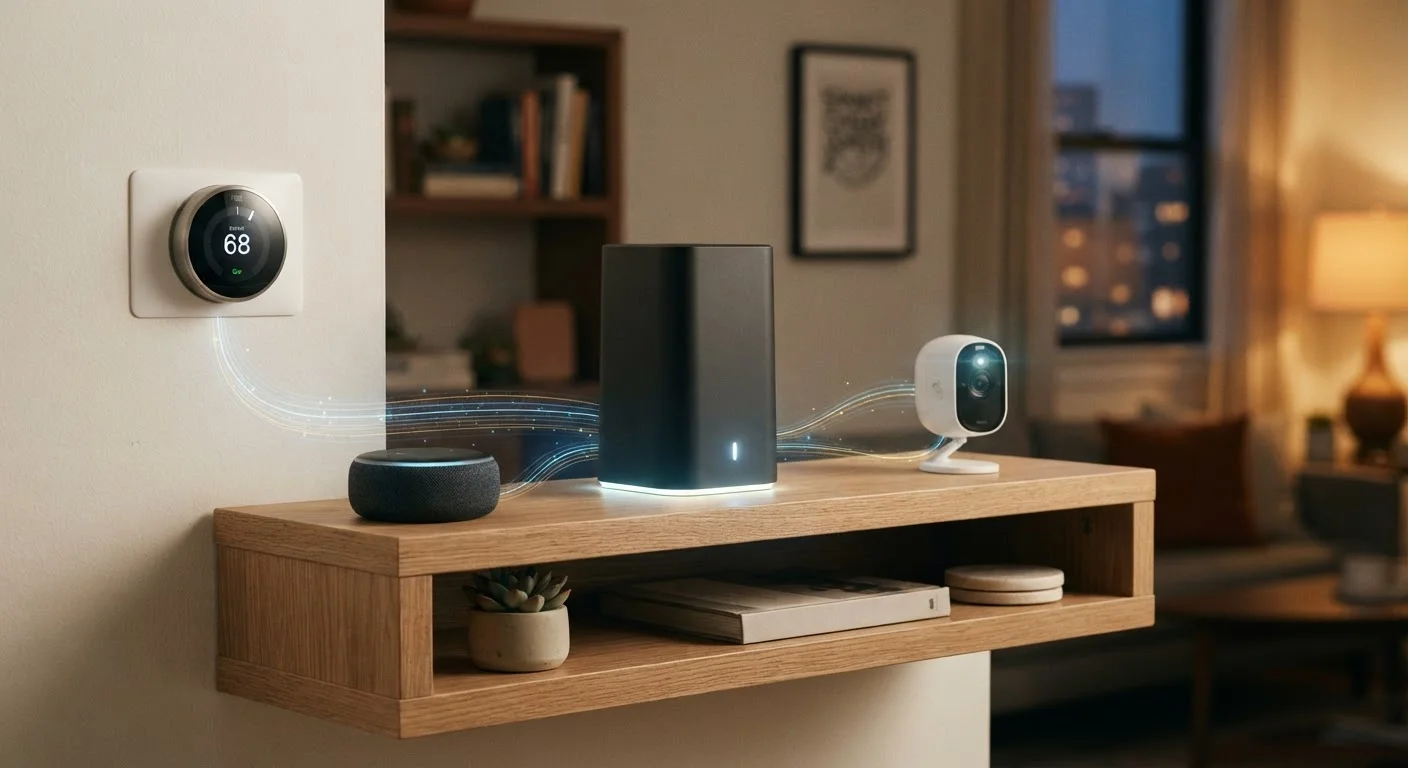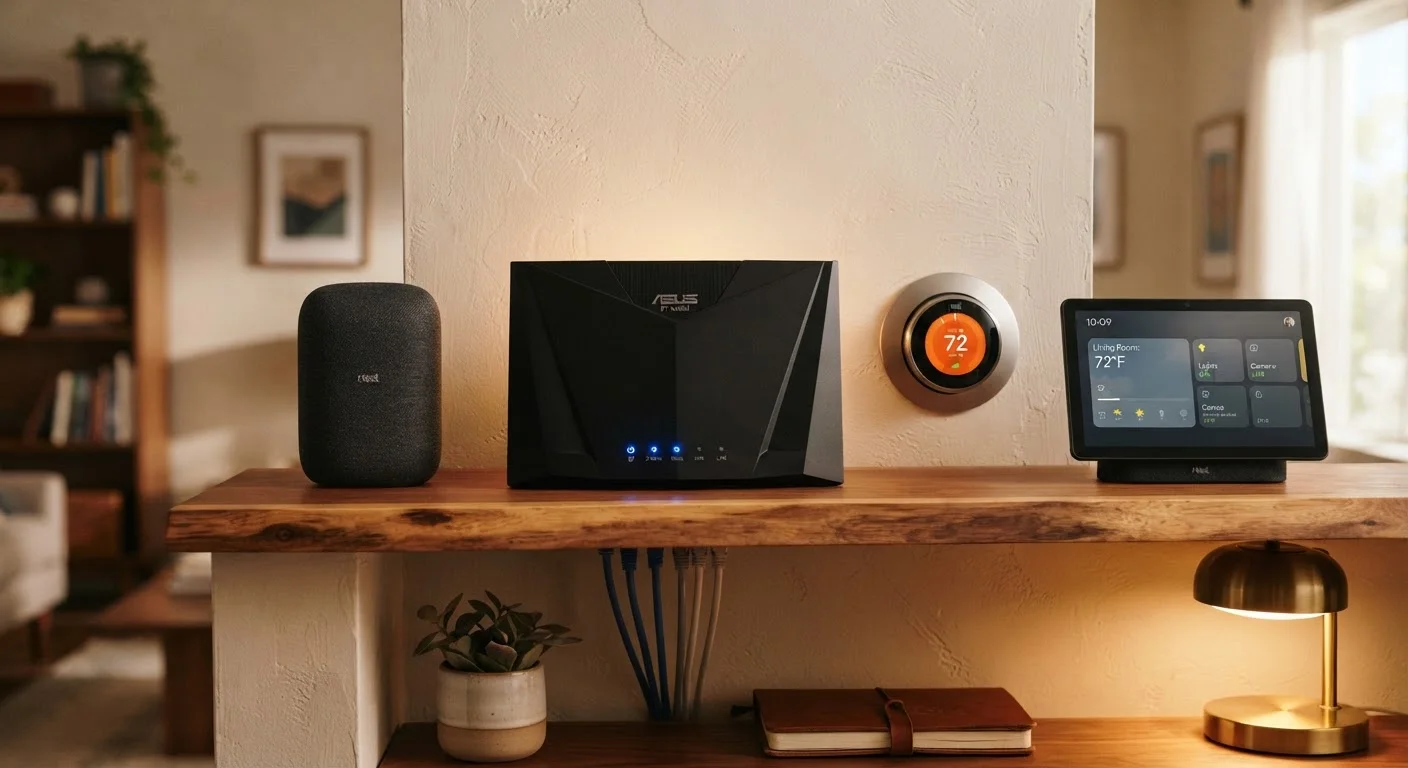
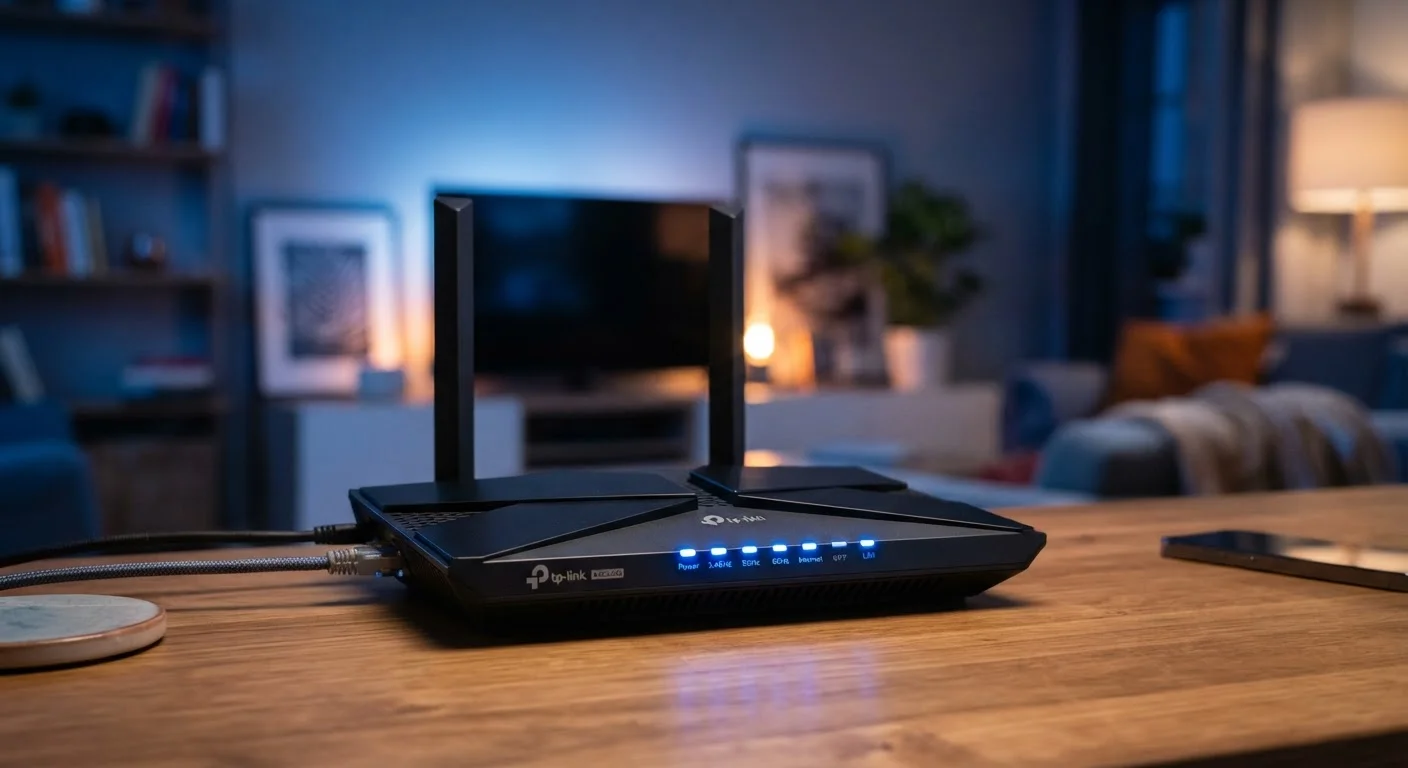
Why Home Network Security Deserves Attention
Most households now connect dozens of devices to a single home network-laptops, phones, smart TVs, thermostats, security cameras, and more. That network is only as secure as its weakest configuration. Many routers ship with settings optimized for ease of setup, not security, which means the defaults that got you online fast may also be leaving your traffic exposed.
The good news: the most effective protective steps don't require technical expertise. They require knowing which settings to change and why. This guide covers practices that deliver real security value, not just security theater. If you're starting from scratch, our guide to setting up a home Wi-Fi network walks through the hardware fundamentals first.
Core Practices That Reduce Your Exposure
The following practices address the most common and consequential vulnerabilities found in typical home network setups.
Replace your router's default admin credentials immediately after setup.
Manufacturers ship routers with generic usernames and passwords-often "admin/admin" or printed on a sticker-that are publicly documented and trivial to look up. An attacker with local or remote access to your router login page can take full control of your network traffic if those defaults remain unchanged.
Enable WPA3 encryption on your Wi-Fi network, or WPA2 at minimum.
Older encryption protocols like WEP and WPA are now trivially broken with widely available tools. WPA2 remains adequate for most households, while WPA3 offers stronger protection against brute-force attacks on your password. Using no encryption or outdated protocols means any nearby device can potentially intercept your traffic.
Keep your router's firmware updated.
Router manufacturers regularly release firmware updates that patch discovered vulnerabilities-including critical ones that allow remote attackers to compromise devices without any password. Most home routers don't update automatically unless you enable that feature, so many households run firmware that is years out of date.
Set up a separate guest network for visitors and smart home devices.
A guest network keeps visitors off your primary network, preventing access to shared folders, printers, or local devices. Equally important, smart home devices-which often have weaker security-are isolated from your computers and phones, limiting what an attacker could reach if a smart gadget were compromised. See our guide on smart device connectivity issues for related context on managing these devices.
Disable WPS and remote management features unless you actively use them.
WPS (Wi-Fi Protected Setup) was designed to make device pairing easier, but known vulnerabilities in its PIN-based authentication allow attackers to brute-force router access in hours. Remote management, when enabled, exposes your router's admin interface to the entire internet rather than just your local network.
Quick Actions You Can Take Today
If the full list feels overwhelming, start here. These actions take under 30 minutes combined and address the highest-probability risks.
Once your router is locked down, consider how the devices connecting to it are configured. Our article on keeping connected devices secure covers device-level habits that complement your router settings.
Ongoing Habits That Keep Your Network Healthy
Security isn't a one-time task. A few periodic habits keep your defenses current without significant effort.
Review connected devices periodically. Most router admin interfaces show a list of all connected devices. Scan it every few months. If you see a device you don't recognize, it warrants investigation-it could be a neighbor piggybacking on your signal or, in worse cases, an unauthorized intrusion. Check out our home network readiness checklist before adding any new smart devices to avoid compounding the problem.
Change passwords after sharing. If you've shared your Wi-Fi password with houseguests, contractors, or neighbors, update it periodically. Alternatively, funnel those users through a guest network so your primary credentials are never exposed.
Router Models and Menu Locations Vary
The exact names and locations of settings described here differ between router brands and models. Common admin panel addresses are 192.168.1.1, 192.168.0.1, or 10.0.0.1-check the label on your router or the documentation that came with it. If your router was provided by your internet service provider, the ISP may also offer a companion app that surfaces these settings more accessibly.
For households experiencing persistent connection issues alongside security concerns, slow or dropping connections are sometimes symptoms of unauthorized network use. See our overview of why home Wi-Fi slows down for context on diagnosing both performance and access issues.