Understanding Your Connection Options
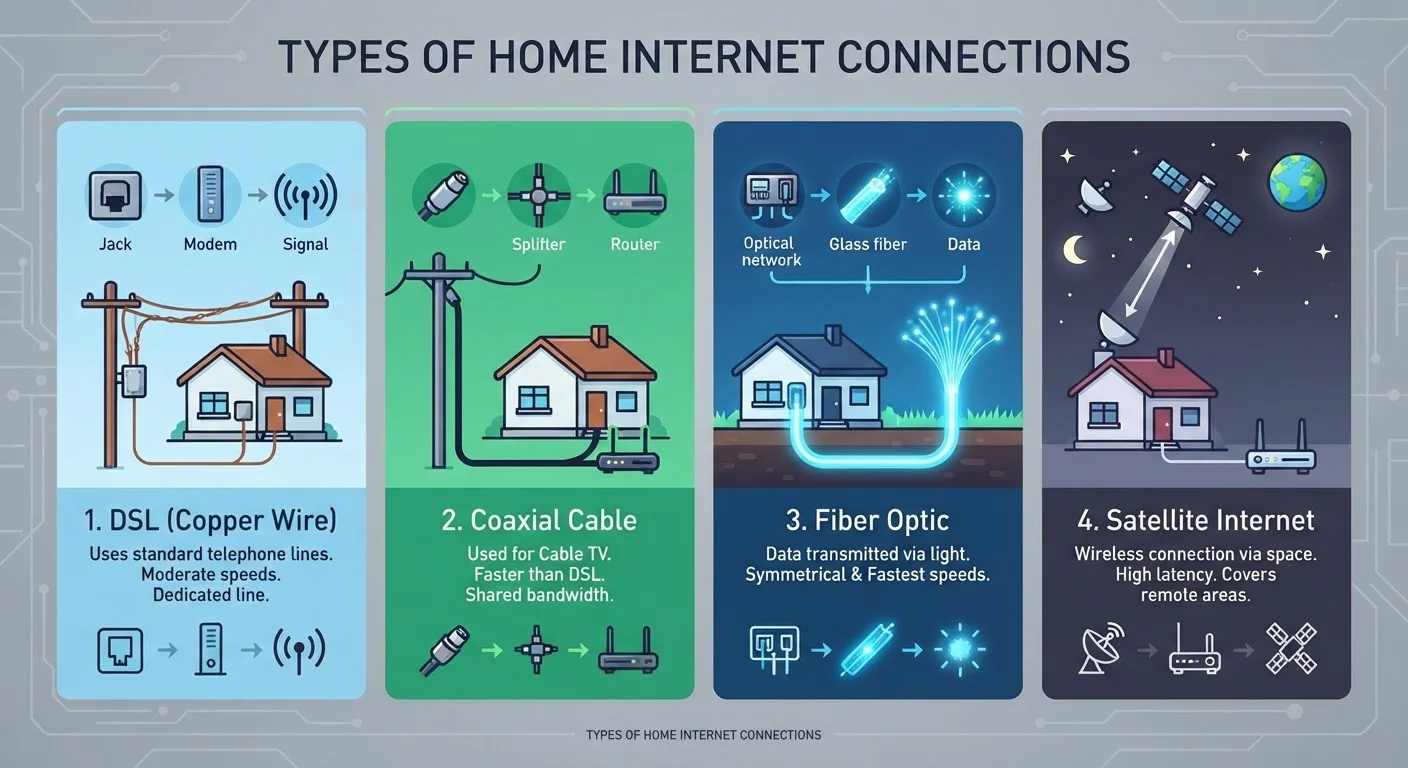
Before you call a provider, it helps to understand what kind of internet connection is physically available at your address. The four main types-DSL, cable, fiber, and satellite-differ in how data travels to your home, which directly affects speed, reliability, and cost.
DSL runs over existing telephone lines and is widely available but tends to offer lower speeds than newer technologies. Cable uses the same infrastructure as cable TV and generally delivers faster, more consistent speeds. Fiber-optic connections transmit data as light through glass cables and represent the current performance standard, though availability is still expanding in many regions. Satellite internet reaches rural and remote areas where ground-based infrastructure doesn't exist, but typically comes with higher latency and data limitations.
For a detailed breakdown of how each technology works day-to-day, see our guide to DSL, cable, fiber, and satellite. Knowing what's available at your address narrows your choices before you spend time comparing plans.
Mbps
Megabits per second - the standard unit for measuring internet speed. Higher Mbps means more data can move at once, supporting more simultaneous activities.
Latency
The time it takes for data to travel from your device to a server and back, measured in milliseconds. Low latency is important for video calls and online gaming.
Data cap
A monthly limit on total data usage set by some providers. Exceeding it may trigger reduced speeds or extra charges depending on your plan's terms.
Gateway
A single device that combines a modem and a router. Providers sometimes supply these as rental equipment when you sign up for service.
Bandwidth
The maximum capacity of your internet connection - how much data can flow through at any given moment. More bandwidth supports more simultaneous users and activities.
Mesh Wi-Fi
A system that uses multiple linked devices placed around your home to create one seamless wireless network, eliminating weak-signal dead zones.
Choosing a Plan That Fits Your Household
Internet plans are sold primarily by download speed, measured in Megabits per second (Mbps). A higher number means more data can transfer simultaneously, which matters when multiple people or devices are active at once.
A general rule of thumb: each active stream of high-definition video uses roughly 5-8 Mbps, a video call uses 3-5 Mbps, and general browsing uses far less. Add up your household's likely simultaneous activities during peak hours to estimate a realistic minimum speed. Then choose a tier above that estimate to leave headroom.
Also consider upload speed-often much lower than download speed on DSL and cable plans. If anyone in your home works remotely, uploads large files, or streams video to others, upload speed deserves attention, not just download.
Match Your Plan to Peak Usage, Not Average Usage
Think about what your household does simultaneously at the busiest time of day-not just individually. If two people are streaming in 4K while a third joins a video call, that's a realistic simultaneous load to plan for. Sizing your plan around that scenario rather than a light-use average will prevent frustrating slowdowns.
What to Verify Before You Sign Up
Plan pricing in advertisements often reflects an introductory rate that increases after a promotional period-commonly 12 to 24 months. Before committing, ask the provider what the rate becomes after that period ends and whether there is an early termination fee if you cancel before your contract expires.
Other details worth confirming: whether your plan includes a monthly data cap, what installation fees apply, and whether equipment rental is bundled in or billed separately. These factors can substantially affect the true monthly cost. Our pre-signup checklist walks through each point in detail so nothing catches you off-guard.
If you're setting up internet in a new home, this step pairs well with broader home setup tasks-first-time homeowners can find a practical introduction to prioritizing home systems here.
Setting Up Your Equipment
Once your service is active, the goal is to get a stable Wi-Fi signal throughout your home. Your core hardware is a modem-which connects to your provider's network-and a router, which broadcasts your wireless network. Some providers supply a combined unit called a gateway that performs both functions.
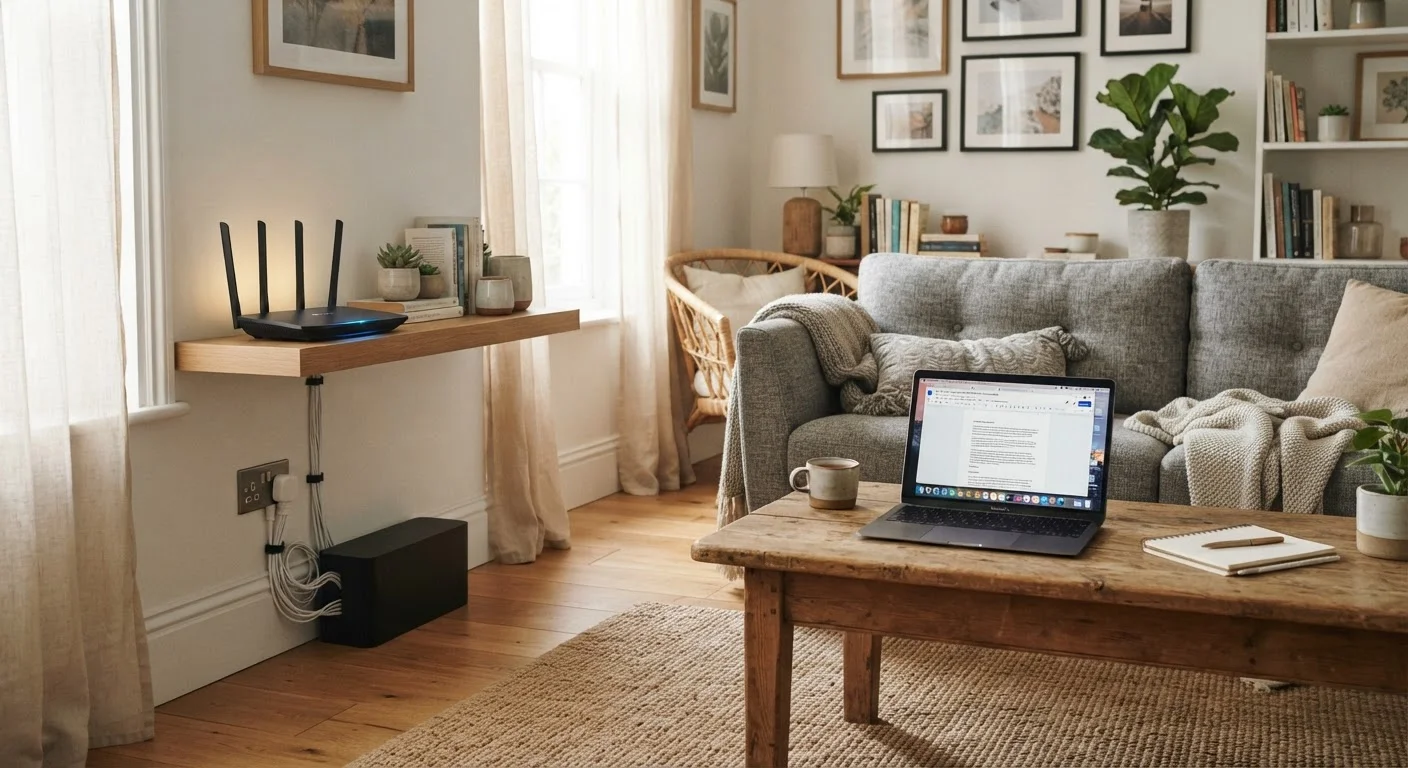
Router placement matters more than most first-time subscribers realize. Position it in a central, elevated location away from microwaves, cordless phones, and thick walls. Most modern routers broadcast on two frequency bands: 2.4 GHz (longer range, lower speed) and 5 GHz (shorter range, higher speed). Connect devices that need reliable speed-laptops, streaming devices-to the 5 GHz band when they're nearby, and use 2.4 GHz for devices farther away or those that only need occasional connectivity.
For a step-by-step walkthrough of the full setup process, our modem-to-full-coverage Wi-Fi guide covers equipment placement, band selection, and extending coverage to dead zones.
Troubleshooting Common Issues
Even a well-configured connection will occasionally underperform. Before calling your provider, work through these steps in order.
- Restart your modem and router. Power both devices off, wait 30 seconds, then power the modem on first and let it fully connect before starting the router. This resolves a surprising number of issues.
- Check for service outages. Most providers have an outage map or status page. If there's a known outage in your area, the fix is on their side, not yours.
- Test with a wired connection. Plug a laptop directly into the router with an Ethernet cable. If speeds improve significantly, the issue is with your Wi-Fi broadcast, not your service.
- Reduce interference. Move the router away from appliances, and if neighbors' networks crowd the same channel, use your router's admin panel to switch to a less congested channel.
Once you have a reliable connection established, you may find yourself thinking about what to do with it. Smart home devices are a natural next step-our practical smart home starting guide explains how connected devices work without assuming any prior experience. You can also explore the full Connected Devices hub for guidance on gadgets, wearables, and more.
Avoid Positioning Your Router Near Interference Sources
Placing a router directly next to a microwave, baby monitor, or cordless phone base station can noticeably degrade Wi-Fi performance. These devices operate on overlapping frequencies. Even a few feet of separation can make a measurable difference in signal quality.